
Quick answer: how to uninstall Froststrap
To answer how to uninstall Froststrap safely, close Froststrap, Roblox Player, Roblox Studio and any other bootstrapper that might be using the same files. Save a short list or screenshot of settings you may need later, especially mods, custom cursors, Fast Flags and release-channel choices. Then use the uninstall entry exposed by your current Windows installation, or the application's own uninstall control if it provides one. Restart Windows when the uninstaller asks, and only inspect remaining files after the program has been removed.
Uninstalling Froststrap is not the same as uninstalling Roblox. The goal is to remove the bootstrapper and its known configuration without deleting the entire Roblox installation or your user profile. If you are preparing a reinstall, keep the original release source handy and test the clean state before restoring optional changes.
| Goal | Keep | Do not do first |
|---|---|---|
| Remove Froststrap | Installer and app entry details | Delete broad AppData folders |
| Keep custom work | Settings you understand and mod source files | Copy unknown executables or scripts |
| Prepare a clean reinstall | Release tag, Windows version and notes | Reuse a broken configuration blindly |
| Return to Roblox defaults | A normal Roblox launch test | Assume every Roblox file belongs to Froststrap |
Before uninstalling Froststrap, make a small recovery record
Write down why you are removing Froststrap and what you want the computer to look like afterward. A failed launch, a configuration experiment and a decision to stop using a third-party bootstrapper need different cleanup choices. Record the installed version shown by Windows or Froststrap, the last setting you changed and whether Roblox works through its standard launcher.
Do not export secrets with your notes. A screenshot of a visual setting is safer than copying a whole profile that may contain paths or tokens. For mods, keep the original archive outside the active Roblox folders. For Fast Flags, save only values you recognize and label them as old until the current project documentation confirms that they still apply.
- Close Roblox, Studio, Froststrap and competing bootstrappers.
- Record the version, last change and exact error if one exists.
- Screenshot settings you may want to recreate instead of copying everything.
- Keep mod archives and custom assets in a separate folder.
- Remove Roblox account credentials, cookies and private paths from notes.
Step-by-step: how to uninstall Froststrap
The visible labels can change between releases, so follow the uninstall entry that Windows shows for the installed build rather than an old video. The public release checked for this guide is v2.0.5; the version number is a freshness reference, not a reason to run a different installer. If Windows cannot find an uninstall entry, use the current project release notes or support channel before deleting files by hand.
1. Close related processes
Exit Froststrap, Roblox Player, Roblox Studio and other bootstrappers. Wait for their processes to finish before starting removal.
2. Open the Windows uninstall view
Use Settings > Apps > Installed apps, or the uninstall entry supplied by the installed Froststrap build. Confirm the name before choosing Remove.
3. Read the removal prompt
If the prompt offers to keep settings or mods, choose deliberately. Do not approve a broad data wipe just because it is the fastest option.
4. Restart when requested
A restart releases locked files and gives Windows a clean chance to refresh application entries.
5. Confirm the app is gone
Check that Froststrap no longer launches from its shortcut and that the Windows app list no longer shows the installed entry.
Keep or remove Froststrap settings and mods
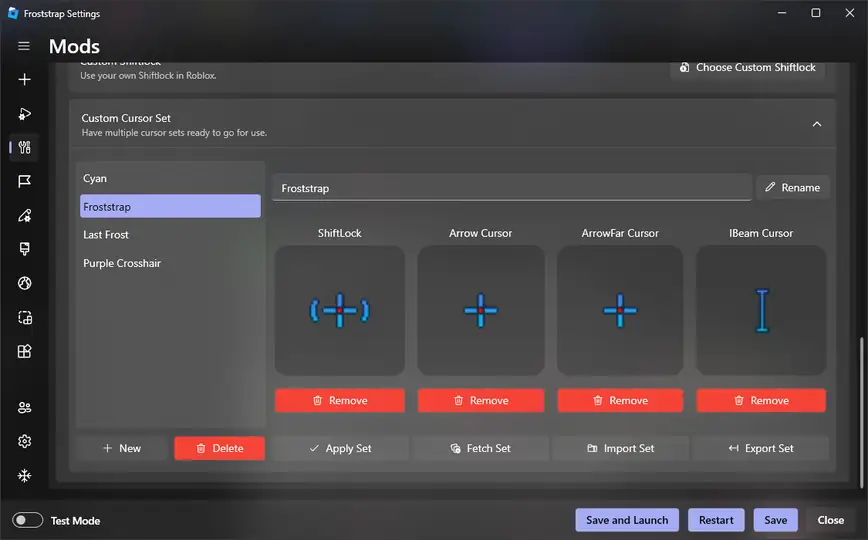
Keeping a setting is useful when you are moving to a new release; removing it is useful when the old configuration may be the cause of a launch problem. Treat those as separate choices. First disable optional mods and custom flags, then test Roblox or the new installation with defaults. If the clean test works, restore one known setting at a time instead of copying the complete old folder back.
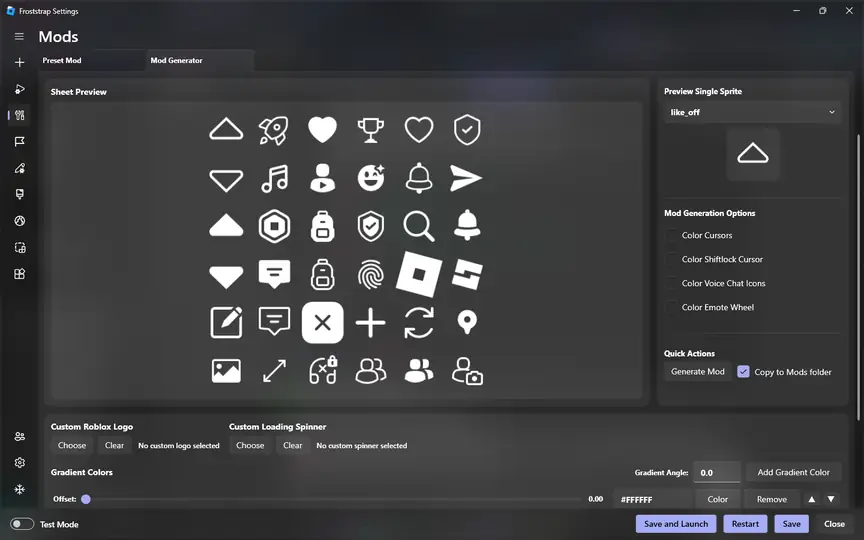
A mod package should contain the asset types it claims to contain. Do not preserve an archive that also asks you to run an EXE, PowerShell script, browser extension or password-protected downloader. The same rule applies to a backup: keep only files whose purpose and source you understand.
1. Separate source files
Move known cursor, texture or sound assets to a neutral backup folder, away from the active Roblox and Froststrap folders.
2. Note the intended target
Write whether a setting was for Player, Studio, a channel or a Fast Flag. This prevents an old note from being applied to the wrong build.
3. Test without extras
Launch Roblox with optional mods and flags disabled. If the issue remains, use the troubleshooting guide rather than deleting more data.
4. Restore selectively
After a clean install, add one small change, launch once and keep the result only when it is understood and reversible.
How to check for leftovers without damaging Roblox
An uninstaller can remove the application entry while leaving settings, logs, shortcuts or a user-created Mods folder. Leftovers are not automatically a problem. Inspect a path only when you know it belongs to Froststrap and is no longer needed. If a folder also contains Roblox files, stop and confirm its purpose before deleting anything.
The safest cleanup order is narrow: remove the desktop or Start shortcut, confirm the Windows app entry is gone, inspect the application's own documented folder, and leave shared Roblox folders alone unless the project explicitly explains the relationship. A third-party cleanup utility may list extra files, but its suggestions are not first-party proof; review each item yourself.
| Symptom after uninstall | First check | Safer action |
|---|---|---|
| Shortcut still appears | Shortcut target and date | Delete the shortcut only |
| Settings return after reinstall | Whether the old user configuration was kept | Rename or move the known config, then test |
| Roblox files are listed | Owner and purpose of each path | Leave shared files unless documented |
| Windows still shows Froststrap | Installed-app entry and restart state | Restart and use the same uninstall view again |
When should you reinstall Froststrap instead of cleaning more?
Reinstall only when you have a clear goal, such as returning to a current stable release or testing whether a clean configuration fixes a repeatable problem. Download the installer from the project's public GitHub release and compare its tag and filename. The release page checked on November 5, 2026 resolved to v2.0.5; check it again at the time you reinstall because releases change.
- Use the official Froststrap/Froststrap release page.
- Match the release tag and Windows asset before opening it.
- Launch Roblox once with defaults before restoring settings.
- Keep the old backup separate until the new baseline is stable.
- Stop if a download page asks for credentials, a cookie or unrelated software.
If Froststrap will not uninstall or Roblox stops launching
Do not respond to an uninstall error by deleting every AppData folder. Note the exact message, restart Windows and check whether a Froststrap or Roblox process is still running. If the uninstall entry is missing, the next safe step is to consult the current project release information or report a reproducible issue, not to run a random cleanup script.
If Roblox stops launching after removal, test the standard Roblox launcher separately. A failure in both paths points to Roblox, Windows or the installation; a failure only after Froststrap changes points to the removed configuration or a shared file. Use the existing Froststrap troubleshooting guide for the diagnostic sequence and keep private data out of logs.
1. Reproduce once
Write the full message and the exact step that fails. Repeating a destructive cleanup can remove evidence.
2. Check processes
Close Roblox, Studio, Froststrap and other bootstrappers, then retry the narrow uninstall action once.
3. Compare the normal launcher
Launch Roblox without Froststrap to separate a Roblox installation problem from a bootstrapper problem.
4. Ask with useful evidence
Include the release tag, Windows version, steps and error text, but remove usernames, tokens, cookies and private paths.
Froststrap uninstall FAQ
How to uninstall Froststrap without removing Roblox?
Close Roblox and Froststrap, use the Windows uninstall entry for Froststrap, and avoid deleting shared Roblox folders. Test the normal Roblox launcher after removal.
Will uninstalling Froststrap delete my mods?
It depends on the installer and the option you choose. Keep known mod source files separately, read the removal prompt and do not assume that a backup of an entire profile is safe to restore.
Should I delete Froststrap from AppData manually?
Only remove a path when current project documentation identifies it as Froststrap data and you have closed related processes. Do not delete broad AppData or Roblox folders as a first step.
What should I do before reinstalling Froststrap?
Record the version and settings, separate mod assets, install the current official release, launch Roblox once with defaults and restore optional changes one at a time.
Why is Froststrap still listed after uninstalling?
Restart Windows, check the same Installed apps view again and confirm that no Froststrap process is running. If the entry remains, record the exact state before trying another narrow removal.
Uninstall and release references
- Froststrap latest GitHub releaseFirst-party release tag, notes and Windows asset to recheck before reinstalling.
- Froststrap source repositoryFirst-party project source, issues and release navigation.
- Microsoft Windows app removal guidanceGeneral Windows guidance for removing installed apps; labels can vary by Windows build.