
Quick answer: what Roblox error code 529 usually means
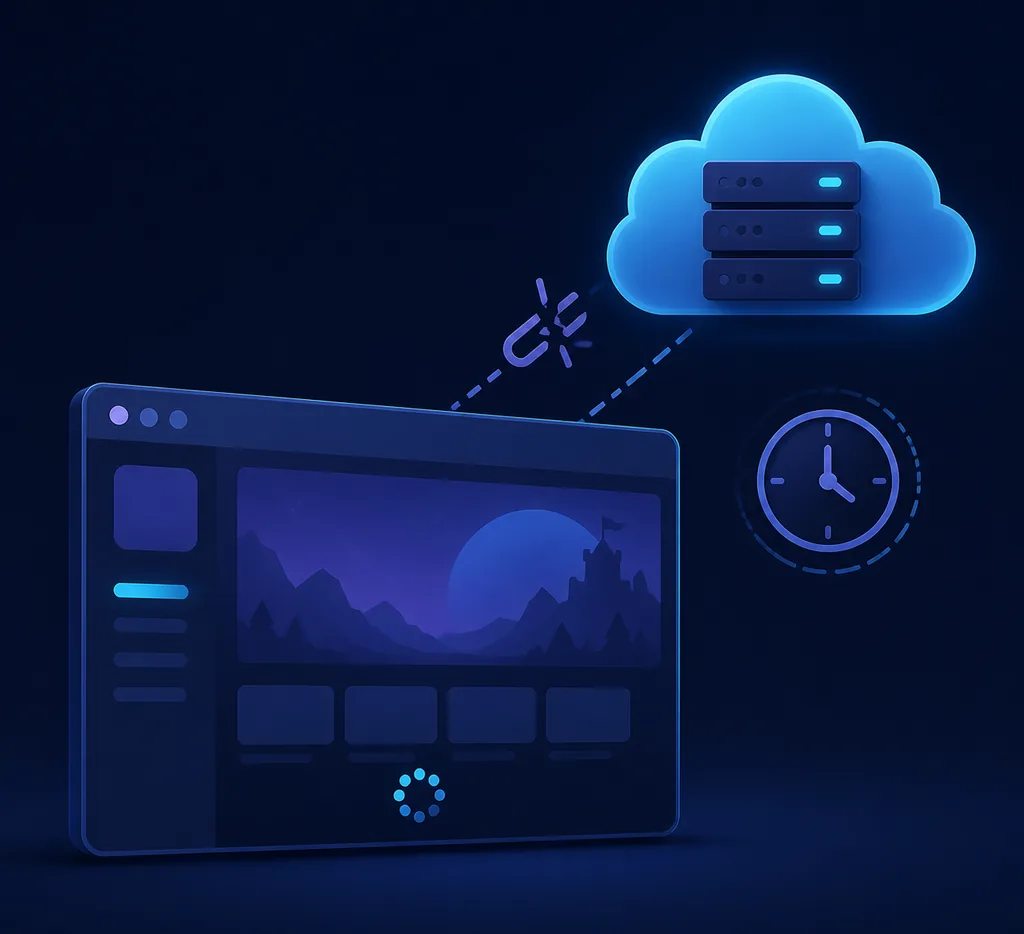
When users report Roblox error code 529, they are often describing an HTTP-style or temporary service response that prevents the client from completing a normal session. The message can appear during sign-in, launch or joining an experience, so the number alone does not prove that your account is banned, that a particular game is broken, or that Froststrap caused the problem.
Treat 529 as a starting signal rather than a final diagnosis. A Roblox service incident, a single unavailable experience, an interrupted network path, a stale client session, Windows security filtering or an optional Froststrap setting can all produce a similar stop. The quickest safe path is to check the platform, repeat the same test and compare launchers before making destructive changes.
If Roblox works normally a few minutes later, the original failure may have been temporary. If it continues, record the exact wording, time, affected experience, Windows version, Froststrap version and whether the standard launcher works. Those details make the next decision evidence-based instead of turning every 529 report into a generic reinstall checklist.
What the official Roblox error-code list does—and does not—confirm
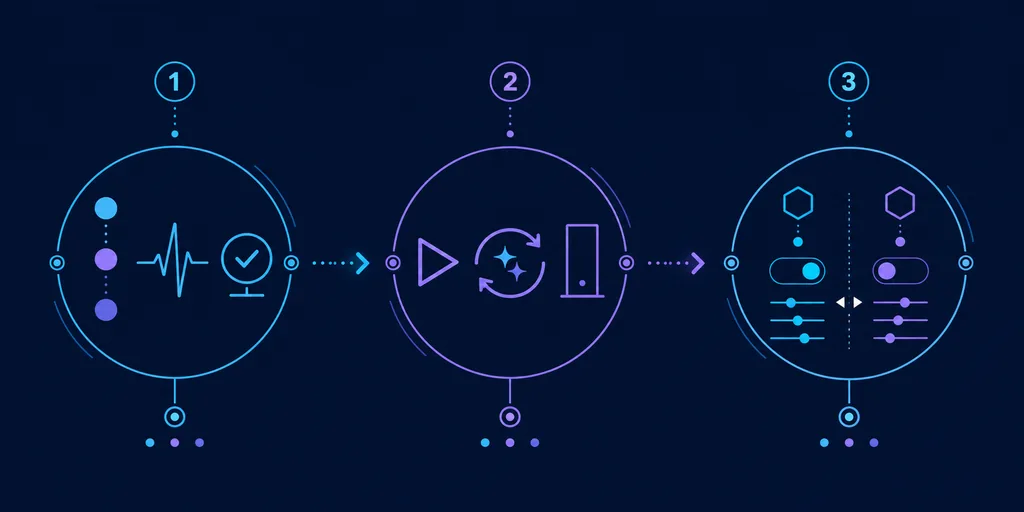
The official Roblox error-code reference is the right place to confirm documented meanings. At the time of this guide's check, it does not provide a standalone definition for error 529. That absence matters: this page should not claim that Roblox officially defines 529 as a permanent ban, a specific account state or one guaranteed Windows fault.
Search results and community discussions may use HTTP 529 wording to describe a temporary overload, gateway or service response. Those reports are useful clues, not a replacement for Roblox Status or the exact behavior on your computer. Keep the distinction visible when you read a fix guide: a community explanation can describe a pattern without proving the cause of every incident.
For a platform-wide problem, waiting and retesting is usually safer than changing DNS, deleting folders or disabling protection. For a problem limited to one experience or one launcher, controlled comparison gives you more information than repeating the same restart. The goal is to locate the failing layer, not to force a particular explanation onto the number 529.
| What you observe | Likely layer | Best next check |
|---|---|---|
| Roblox Status shows an incident | Roblox platform | Wait for recovery and retest |
| Only one experience fails | Experience server or place | Try another known-working experience |
| Every experience fails on one PC | Windows, network or local client | Compare another network and the standard launcher |
| Standard Roblox works but Froststrap fails | Froststrap profile or optional setting | Test Froststrap with defaults |
| Both launchers fail on every device | Service, network or account path | Use official status and support channels |
Check the service before changing your PC
Open the official Roblox Status page before reinstalling anything. Look for incidents affecting website access, authentication, game join or platform services. A green page is not proof that every region or experience is healthy, but an active incident is strong evidence that a local fixer will not solve the underlying condition.
Then test the same account on a second, known-working experience if you can. If only one place returns 529, its server, update or access rules deserve attention. If every experience fails, compare the Roblox website, the standard launcher and another trusted network. Keep the account and computer constant where possible so each test changes only one variable.
Do not publish cookies, passwords, two-factor codes or private headers while asking for help. A screenshot should show only the useful error text and remove account names, tokens and local paths. Good troubleshooting evidence is small, repeatable and safe to share.
Seven fixes in a safe order
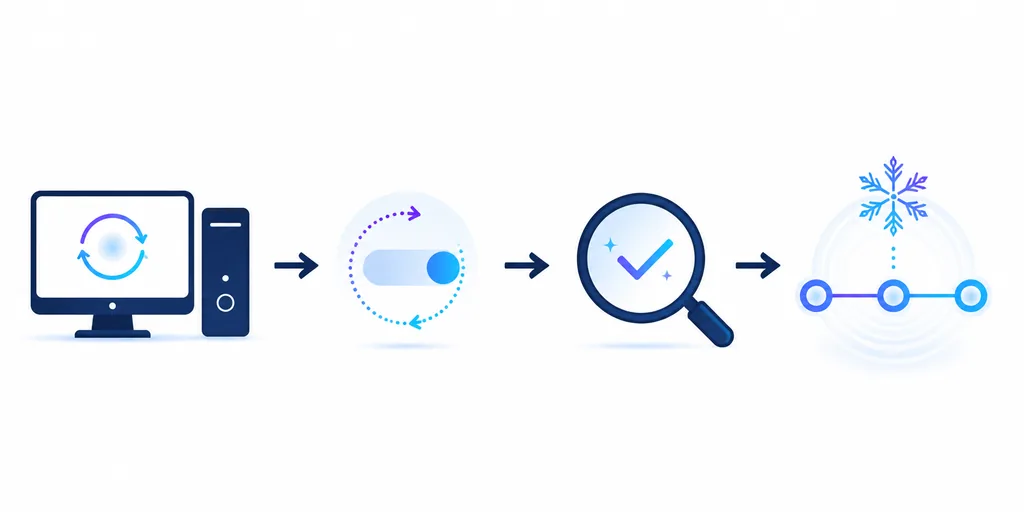
Use the least destructive step that can answer the next question. Test Roblox after each step and stop when the same experience opens normally. You do not need to complete all seven fixes when the first comparison identifies a service or launcher problem.
If the standard Roblox launcher works, keep it as your baseline. If both launchers fail, do not assume Froststrap is responsible; continue with the platform, network and Windows checks below.
1. Check Roblox Status and wait briefly
Review the official status page, note any active incident and wait before making broad local changes. If the service is recovering, close Roblox, wait a few minutes and retry the same experience. Record the time so you can distinguish recovery from a local change.
2. Try another experience
Join a familiar experience that normally works. A one-place failure points toward that experience or its current server path; an all-places failure needs a broader platform, network or client comparison. Do not interpret one failed place as proof of an account ban.
3. Close clients and restart Windows
Exit Roblox, your browser and Froststrap, then confirm that no Roblox or bootstrapper process is still running. Restart Windows and run one clean test. This clears a stuck session without deleting configuration or changing security policy.
4. Compare the standard Roblox launcher
Open the same experience from the normal Roblox website. If it works while Froststrap fails, return Froststrap to defaults and disable imported flags, custom channels, mods and optional account settings for the next test. If both fail, move your attention away from the bootstrapper.
5. Review network and security changes narrowly
Disconnect an active VPN or proxy, check whether a firewall or antivirus event names the exact executable, and test another trusted network if available. Do not disable Windows security globally. Only consider a narrow, temporary exception after verifying the file source and path, and remove it if it makes no difference.
6. Refresh only relevant temporary data
Close every Roblox process before clearing documented temporary Roblox data. Do not delete broad user folders, browser cookies or Froststrap configuration you still need. Retest the standard launcher first, then create a clean Froststrap baseline if the comparison points to its profile.
7. Update or reinstall from an official source
Use the official Roblox installation flow and the public Froststrap repository when a current build is damaged or a clean baseline is required. Read release notes, keep the original filename and test defaults before restoring optional settings. A reinstall is a final evidence-based step, not the first response to every 529 message.
Froststrap-specific diagnosis when the standard launcher works
A Froststrap comparison is useful only when the account, experience, computer and network stay the same. Start the standard Roblox launcher successfully, close it, then open the current Froststrap release with defaults. If Froststrap now works, restore one optional setting at a time and repeat the same experience test.
Pay special attention to imported Fast Flags, development channels, mods, region preferences and saved account-related options. An old preset may contain a value that Roblox now ignores or a change that affects startup without improving the actual service connection. The Roblox Fast Flags guide can help you review allowlist and rollback expectations before importing another preset.
If a clean Froststrap launch still fails while standard Roblox works, collect the exact release, Windows version, message, experience name and smallest reproducible steps. Search the public Froststrap GitHub issues before filing a report. Remove account information, session cookies and private logs from every attachment.
What not to do when fixing error 529
Do not download an unknown one-click Roblox error fixer, FPS booster or “unban” tool. A third-party executable cannot prove that a Roblox service response has recovered, and it may request credentials, cookies or unrelated permissions. Use the Froststrap safety guide when evaluating a release and keep the official source visible.
Do not disable the firewall, SmartScreen or antivirus for the entire computer because a tutorial says every warning is false. Do not change DNS, proxy, flags, cache and launcher settings in one attempt. Multiple simultaneous changes destroy the before-and-after evidence you need.
Do not state that error 529 is always a ban or always a server outage. The official reference does not give the number a universal standalone definition, and the same on-screen symptom can occur at different layers. Use cautious wording and say what you actually tested.
- Do not share Roblox passwords, cookies, tokens or two-factor codes
- Do not install an unknown error-fixer executable
- Do not disable all Windows security controls
- Do not treat a community explanation as an official code definition
- Do not change five settings before testing the same experience
- Do not delete broad profile folders while trying to clear a temporary error
When to contact Roblox or Froststrap support
Use Roblox's official support process when the same account fails across devices, the website and standard launcher fail after status returns to normal, or the issue concerns account access. Include the approximate time, exact message, affected experiences and steps already tested. Never include credentials or session data.
Use the public Froststrap issue tracker when the latest stable release fails from defaults but standard Roblox works on the same account, computer and network. A useful report identifies the release, whether optional settings were disabled, whether a clean profile changes the result and the smallest repeatable sequence.
If only one experience fails, wait for that experience or contact its creator before changing the whole installation. Error 529 is a symptom at a boundary, not a promise that one universal Windows command can repair every cause.
Roblox error code 529 FAQ
These answers keep the keyword boundary useful without turning an uncertain message into an unsupported guarantee. Recheck official status and release sources when the platform or Froststrap changes.
Summary and related guides
Start with Roblox Status, try another experience and compare the standard launcher. If only Froststrap fails, use defaults and restore one setting at a time. If both launchers fail, investigate service, network and Windows layers before reinstalling. For a different connection symptom, compare the Roblox error code 279 guide; for authentication failures, see error code 403. Broader launcher checks are in the Froststrap troubleshooting guide and the installation guide.
Roblox error code 529 FAQ
What does Roblox error code 529 mean?
It is commonly reported as an HTTP-style or temporary service response, but the official error-code reference does not give 529 a universal standalone definition. Check Roblox Status, repeat the same experience test and compare launchers before assuming a cause.
Is Roblox error code 529 a ban?
Not by itself. A number in an HTTP-style message does not prove an account ban. Try another experience, the Roblox website and the standard launcher, then use official support if the same account fails across devices.
What is the safest first fix for error 529?
Check Roblox Status, wait briefly if an incident is active, then retry a known-working experience. This preserves your installation and tells you more than immediately deleting files or changing security settings.
Can Froststrap cause Roblox error code 529?
A stale or optional Froststrap configuration can contribute when standard Roblox works but Froststrap fails. Test the current release with defaults, imported flags, mods and custom channels disabled before drawing that conclusion.
Will changing DNS always fix Roblox error 529?
No. DNS cannot repair a Roblox outage, an unavailable experience or a local Froststrap profile. Treat network changes as later diagnostic steps and compare another trusted network first.
Should I download a Roblox error code 529 fixer?
No. Avoid unknown executables that promise a guaranteed repair or unban. Use Roblox's official status and support pages, Windows checks and the public Froststrap repository when the issue is launcher-specific.
Official references
- Roblox Support: Error CodesUse the official reference to distinguish documented codes from an HTTP-style 529 report.
- Roblox StatusCheck platform incidents before changing local files or security settings.
- What happens when Roblox is down?First-party guidance for service availability and waiting for recovery.
- Froststrap GitHub repositoryPublic source, releases and issue tracker for launcher-specific comparisons.