
How to Manually Update Froststrap Safely
This guide explains how to manually update Froststrap on Windows: identify the installed version, open the current official release, verify its installer, and test the app before restoring optional changes. Keep Froststrap, Roblox and Roblox Studio closed while you run the installer. Do not remove your settings folder as a first step; an update should not require you to erase unrelated user data.
The stable release checked for this guide on October 23, 2026 is v2.0.5, published on October 7. Its Windows asset is Froststrap-windows-x64.msi, listed at 26.2 MiB, with SHA-256 b8140f062863d31a146b130fe49e2b3f30513287fb74149e8c190197e8d798c5. These are a dated verification snapshot, not a promise that the tag will remain current. Open the official latest release page again when you update.
- Use the public Froststrap/Froststrap repository or its linked Releases page as the source.
- Match the release tag, Windows package name, file size and published checksum before running setup.
- Change one thing at a time and test once with your usual settings.
Check the Froststrap release before installing
Open the official Froststrap GitHub Releases page, not a mirror or video download link. Read the tag and notes, and choose a stable release for the normal build. A higher prerelease number is not automatically the stable channel.
Match the Windows installer filename and host to the release listing. If the package format changes, use the listed Windows asset and current instructions rather than searching for an older MSI. These release details are a dated snapshot.
When a SHA-256 digest is published, compare it with PowerShell's Get-FileHash output. A match shows that the bytes match the listed file; it does not prove every program is risk-free. If no digest is published, do not invent one or trust a value copied from another page.
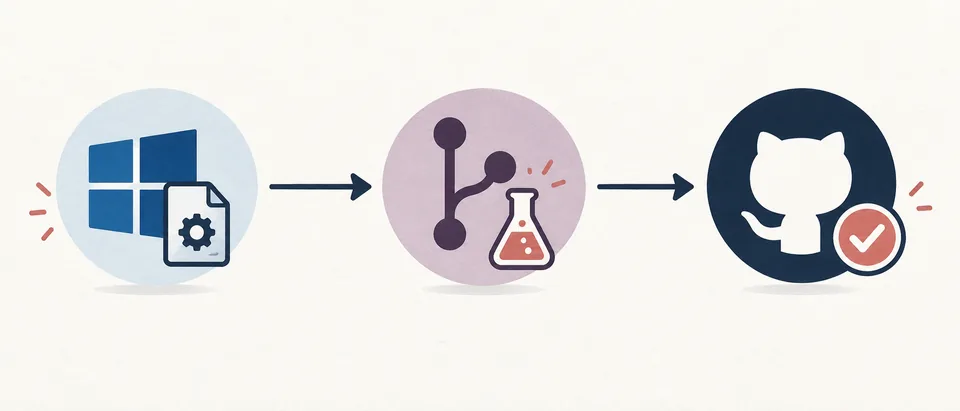
Open the first-party release
Use the repository's Releases page and read the release tag, date and notes.
Select the Windows asset
Choose the Windows installer listed in that release, not a similarly named file from a mirror.
Compare file details
Check the exact filename, byte size and published SHA-256 when present.
Stop on a mismatch
Do not run an asset whose host, tag or file details differ from the official release.
Prepare the installed copy and your settings
Note the installed version and any recent error. Close Roblox Player, Roblox Studio, Froststrap and other Roblox bootstrappers so no process holds installer files open.
Write down settings to check afterward, such as a cursor set, mods, FastFlag profile or Roblox channel. Avoid copying unknown configuration files. Keep passwords, cookies and authentication tokens out of screenshots and support posts.
Keep Windows Security enabled. If it blocks the file, review the exact source and detection; a warning alone proves neither safety nor malware. Replace incomplete or checksum-mismatched downloads instead of disabling protection.
- Write down the installed version and the error, if there is one.
- Close Roblox, Studio, Froststrap and competing bootstrapper processes.
- Record settings you want to restore without copying unknown files.
- Keep Windows Security on and verify any prompt before continuing.
Run the Windows MSI and test the update
Open the verified MSI and follow the prompts for that release. Installer options can change, so do not rely on old button labels. Stop if setup asks to remove data or use an unfamiliar path, and check the current release notes.
When setup finishes, launch Froststrap and confirm it opens at the intended version. Start Roblox once through Froststrap and let startup finish. For this first test, leave new mods and large FastFlag imports disabled so a failure is easier to trace.
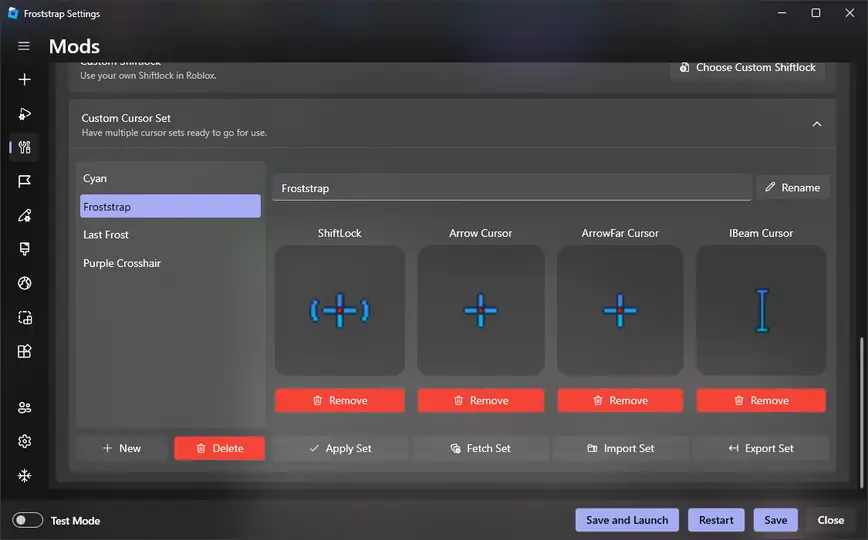
After a successful test, restore optional settings one group at a time. The screenshots below show settings, not the installer; use them to recheck options you recorded.
Run the verified MSI
Open the file only after its source and release details match. Read the current installer prompts.
Start Froststrap with defaults
Let the app finish startup before re-enabling optional mods, flags or channel changes.
Check the installed version
Compare the version shown by the installed build or its Windows app details with the release tag.
Test Roblox once
Launch one experience and wait for a normal client start before restoring other settings.
Restore settings gradually
Re-enable one setting group at a time so any new problem remains traceable.
Fix a Froststrap update that does not complete
If the installer will not start, verify the file again. A partial download, wrong package or mirror can fail before Froststrap opens. Delete only the incomplete file and get a fresh asset from the official release.
For a file-in-use message, close Roblox, Studio and Froststrap, then retry once. For permission or path errors, record the exact message and path. Do not delete the Roblox folder or broad AppData directories; back up only settings you understand.
If Froststrap opens but Roblox fails, test standard Roblox and Froststrap with defaults. If both fail, the cause may be outside Froststrap. If only Froststrap fails, disable the last optional change and use the Froststrap troubleshooting guide. Include the release tag and repeatable error, but remove personal data from logs.
| Symptom | First check | Safer next step |
|---|---|---|
| MSI will not open | Official host, filename, size and checksum | Download a fresh Windows asset from the release page |
| Installer says a file is in use | Roblox, Studio and Froststrap processes | Close those apps and retry once |
| Windows blocks the file | Specific detection and download source | Inspect the alert; keep security enabled |
| Froststrap opens but Roblox fails | Test standard Roblox, then Froststrap defaults | Use the troubleshooting hub if only Froststrap fails |
| Settings look different | Recorded settings and release notes | Restore one option group at a time |
Does Froststrap update itself from inside the app?
The public README checked for this guide does not document an in-app updater for the Windows app. Unless the current build or release notes say otherwise, use the published installer.
"Update Froststrap through the app" can also mean changing an in-app Roblox setting. Check the control label: FastFlags, Roblox client updates and Froststrap releases are separate; changing one does not update the others.
If a future release documents an updater, follow its guidance and verify the project source. Avoid unofficial patchers or requests for credentials.
When to reinstall instead of update
Choose reinstall only after the normal update fails repeatedly or the project recommends it. Check release notes and preserve settings you need; reinstalling is not a reason to erase user data.
If a clean configuration is needed, make one controlled change and record the result. Follow current uninstall and install guidance, not old forum commands. See the installation guide and GitHub guide for first-launch and release checks.
Roll back only when the project still publishes the prior version and recommends it. For regression testing, record the exact tag and keep that build separate from normal play.
Froststrap manual update FAQ
How can I learn how to manually update Froststrap without losing my settings?
Open the official GitHub Releases page, verify the stable tag and Windows asset, run the published installer, and test Froststrap with your usual settings before adding new changes.
What is the latest Froststrap version?
The official latest stable release checked for this guide on October 23, 2026 was v2.0.5, published October 7, 2026. Recheck the official Releases page because the current tag can change.
Can I update Froststrap without deleting my settings?
Do not delete settings as a first step. Record the options you need, follow the current installer prompts, and check your settings after the update. Back up only files whose location and purpose you understand.
Does Froststrap have an in-app updater?
The public README checked for this guide does not document a self-updater for the Windows application. Use an in-app update only when the current build or official release notes explicitly describe it.
How can I verify a Froststrap MSI?
Match the file name and size to the official release, then use PowerShell Get-FileHash with SHA256 and compare the result with the release's published digest.
What should I do if the Froststrap update fails?
Check the exact installer message and file details, close related apps, and retry only with a verified official asset. Avoid deleting broad folders; use the troubleshooting guide for a repeatable launch failure.
Official release sources
- Froststrap v2.0.5 ReleaseOfficial release page for the Windows MSI and current release notes.
- Froststrap source repositoryThe project README identifies the public repository as an approved binary source.