Quick answer: what the Froststrap Account Manager does
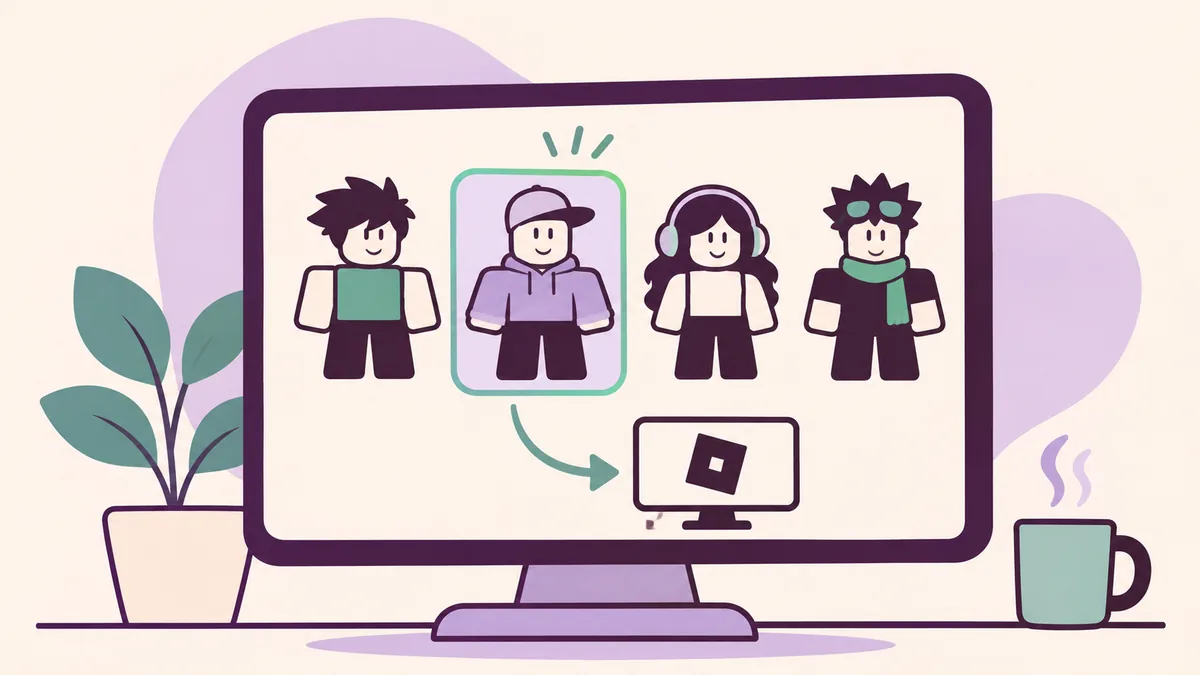
The Froststrap Account Manager is the launcher’s built-in feature for managing Roblox accounts. The official README confirms that the feature exists, so it is reasonable to look for account-management controls in the current Froststrap release. Its public description does not, however, provide a step-by-step interface walkthrough or explain exactly how account details are stored.
Think of an account entry as a way to choose the identity for a normal Roblox launch. After selecting one, start Roblox through the familiar launcher flow and confirm the username or avatar that Roblox actually shows. If the visible identity is not the one you expected, stop before joining an experience and use Roblox’s normal sign-out or account-switching controls. This guide does not require a password, cookie, token, or account export.
- Use the current project release and read the labels shown in your own interface.
- Choose one account context, then verify the identity in Roblox after launch.
- Keep passwords, cookies, recovery codes, and private account data out of screenshots.
- Use Roblox’s normal sign-in flow if an account needs to be authenticated again.
What public Froststrap sources confirm—and leave unspecified
The Froststrap project README lists “Manage accounts using the built-in account manager” among its extra features. That is useful confirmation that account management is part of the project. It does not establish a specific button location, a maximum number of saved accounts, an encryption method, or a promise that every account will remain signed in after an update. Those details should not be inferred from a feature name or an older screenshot.
The feature can change as Froststrap and Roblox evolve. Prefer the current project release and its linked documentation over old videos, third-party installers, or forum snippets. If your interface differs from this article, follow the visible current label and check the official repository before changing files. The project’s public materials are the source for Froststrap behavior; Roblox’s own help pages are the source for Roblox web-account features and account rules.
- Confirmed: the public README names a built-in account manager.
- Not confirmed by that description: exact controls, a fixed limit, or how account data is protected.
- Do not treat a community screenshot as proof of the current release’s interface.
Account manager vs Roblox Account Switcher vs multi-instance
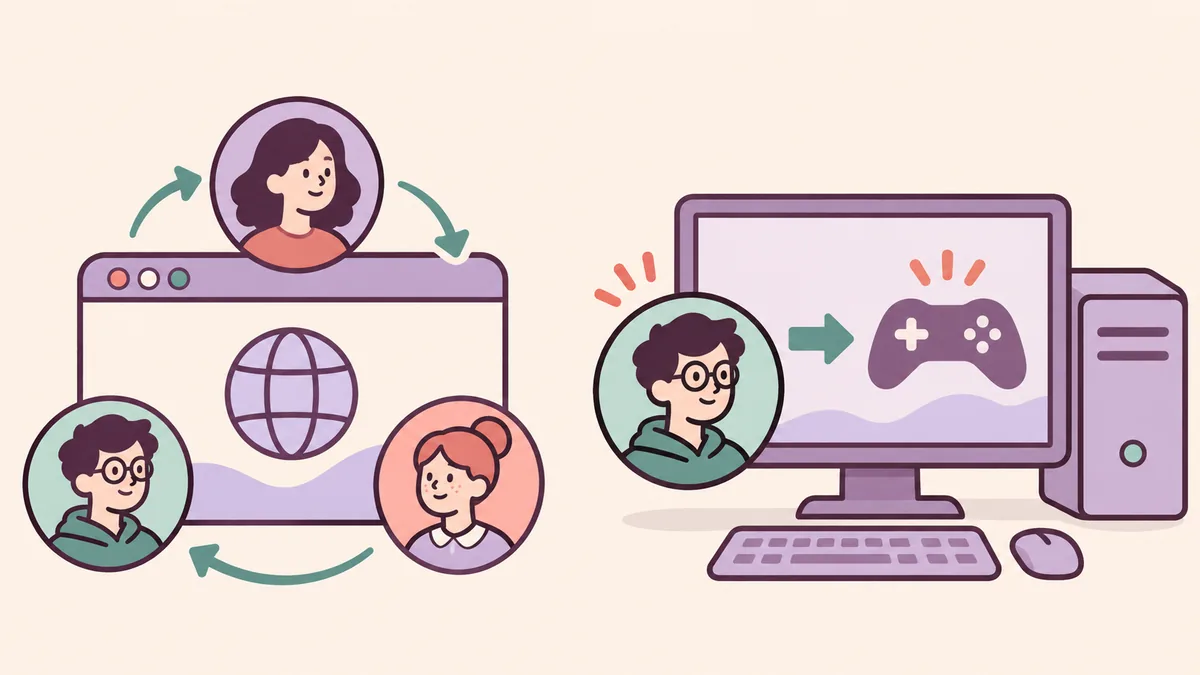
These features answer different questions. Froststrap’s account manager is a launcher-side account feature. Roblox Account Switcher is a Roblox website feature with its own published eligibility and account limit. Froststrap multi-instance is about running more than one Roblox client on one computer. One feature does not prove the limits or behavior of another.
Roblox’s help article says its web Account Switcher is available to users aged 13 or older who do not have parental privileges, and that up to five accounts can be added there. Apply those conditions only to Roblox’s web switcher. They are not a Froststrap account limit, and having several account entries does not by itself mean several clients are running. For the separate client-launch task, see the Froststrap multi-instance guide.
| Option | Where it acts | Question it answers | What not to assume |
|---|---|---|---|
| Froststrap Account Manager | Froststrap launcher | Which managed account context should I use? | A specific storage method or account cap |
| Roblox Account Switcher | Roblox website | Which website account should I switch to? | That its published rules govern Froststrap |
| Froststrap multi-instance | Local client launch | Can more than one client run on this computer? | That account selection and multiple clients are the same feature |
Prepare a safe account-switching baseline
Before changing an account selection, make one ordinary launch with the account you already recognize. Note the displayed Roblox username, close the client normally, and avoid changing unrelated launcher options at the same time. A simple baseline gives you a clear comparison if a later launch opens the wrong account or asks you to sign in again.
Use a computer and Windows profile you control. Keep the Froststrap installer and updates tied to the project’s public repository, and avoid helpers that ask for a Roblox cookie, browser profile export, password, or two-factor code. If other people use the same Windows account, do not assume that a launcher entry is private to you. The public sources reviewed for this guide do not document a complete local storage or encryption model, so do not rely on an undocumented privacy guarantee.
- Confirm the current Froststrap version from the official project source.
- Record only a non-sensitive label, such as the Roblox username you expect to see.
- Close Roblox and Studio before testing a different account context.
- Keep security protection enabled; do not create antivirus exclusions for account switching.
Choose an account and verify the normal launch
The current public documentation does not publish a stable sequence of Froststrap buttons, so treat the steps below as a cautious verification method rather than a claim about exact control names. Read the labels in your installed release. If an option is missing or behaves differently, do not hunt for hidden files or use a third-party patcher to recreate it.
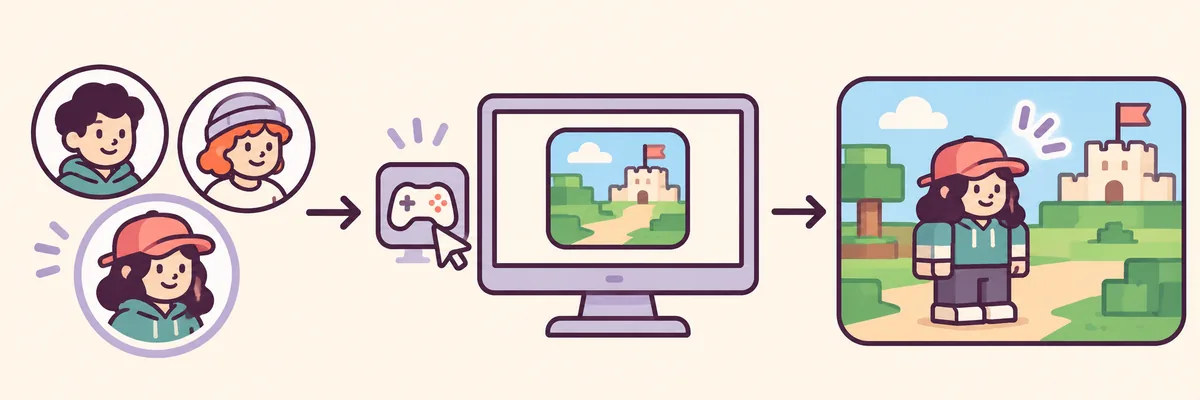
The practical test is simple: select the intended account context, launch Roblox through the ordinary Froststrap workflow, and compare the identity shown by Roblox with the one you intended. Use the visible username or avatar, not a guessed local file path. If the result is ambiguous, stop and return to Roblox’s standard account controls before starting a game.
1. Establish the expected identity
Write down the Roblox username you intend to use. Do not include a password, email address, cookie, or recovery code in the note.
2. Inspect the current Froststrap controls
Open the current release and read the account-management labels that are actually visible. Do not rely on coordinates or names from an old image.
3. Select one account context
Choose the entry that matches your intended identity. Change no unrelated channel, mod, Fast Flag, or multi-instance setting during this check.
4. Launch and check Roblox
Start one client through the ordinary launcher path. Confirm the displayed username or avatar before joining an experience.
5. Stop safely if it does not match
Close the client and use Roblox’s normal sign-out or account-switching flow. Do not paste credentials into an unfamiliar prompt or keep retrying blindly.
Protect passwords, cookies, and local account data
A Roblox session cookie can act like sensitive sign-in material. Never post it in a support ticket, paste it into an unofficial account manager, or send it to someone who offers to switch accounts for you. The same rule applies to passwords, two-factor codes, backup codes, browser exports, and logs that may include private account details.
The public Froststrap feature description reviewed here does not explain whether account information is encrypted, where it is stored, or how it is removed. That missing detail is not proof of unsafe handling, but it also is not a basis for promising encryption or private storage. Keep Windows access limited to people you trust, install updates from the project’s recognized release source, and avoid copying account data between computers unless current project documentation explains the process.
- Never share a Roblox session cookie or browser profile export.
- Do not enter credentials into pop-ups or helper apps that are not part of a verified Roblox sign-in flow.
- Redact usernames and private paths from screenshots when they are not needed for diagnosis.
- If you suspect account access was exposed, secure the Roblox account through Roblox’s own recovery and security settings.
Troubleshoot a missing or unexpected account
If the account manager shows no familiar entry, first check that you opened the expected Windows profile and the current Froststrap installation. Reopen the launcher once and inspect the visible account controls. Avoid deleting folders, registry entries, browser data, or configuration files when the project has not documented them as a repair step.
If Roblox opens with the wrong identity, close that client before trying again. Use Roblox’s own account-switching or sign-in controls to restore a known account, then repeat the single-client baseline. Do not repeatedly launch clients or mix account switching with a multi-instance test; doing so makes it harder to tell which change caused the result. If the issue remains, report only the Froststrap release, Windows version, visible symptom, and steps to reproduce.
- Missing entry: confirm the Windows user profile and inspect the current visible controls.
- Wrong identity: close Roblox and return to its standard account controls.
- Repeated sign-in prompt: stop and use Roblox’s normal authentication flow.
- Need more than one client: troubleshoot that separate task with the multi-instance guide.
Limits, rules, and when to stop
The available public description confirms that Froststrap includes an account manager, but it does not set a public maximum number of managed accounts or guarantee that accounts remain signed in. Do not infer either point from Roblox’s separate five-account website switcher or from an old Froststrap screenshot. The current project release and documentation should guide what the installed interface supports.
Account management does not override Roblox rules, account permissions, or experience-specific requirements. Stop if a workflow asks you to bypass an access restriction, conceal activity, share an account session, or install an unofficial executor. If you need to recover from a confusing state, close Roblox, use the normal Roblox account controls, and return to a single known-good launch before testing any other launcher option.
- No documented Froststrap account cap was found in the sources reviewed on 2026-11-30.
- The five-account limit belongs to Roblox’s web Account Switcher help page only.
- A managed account entry is not proof that multiple Roblox clients can run at once.
- When interface behavior changes, check the official Froststrap GitHub and release guide.
Froststrap Account Manager FAQ
What is the Froststrap Account Manager?
It is a built-in Froststrap account-management feature named in the project README. The public description confirms that it exists but does not document every control or its local data model.
How many accounts can Froststrap Account Manager save?
The public Froststrap sources reviewed for this guide do not state a fixed account limit. Roblox’s separate web Account Switcher documents up to five accounts, but that limit must not be applied to Froststrap.
Does Froststrap Account Manager store passwords or cookies securely?
The public feature description does not specify how account data is stored or protected. Do not assume an encryption method, and never share a password, session cookie, recovery code, or browser export with an unofficial helper.
Is Froststrap Account Manager the same as Roblox Account Switcher?
No. Froststrap’s feature is part of its launcher, while Roblox Account Switcher is a website feature with separate eligibility and account rules. Use each product’s own current documentation.
Does an account manager let me run multiple Roblox clients?
Account selection and multi-instance launching are different tasks. The account manager does not establish that multiple clients are running; see the Froststrap multi-instance guide for that separate workflow.
What should I do if Froststrap opens the wrong Roblox account?
Close the client, verify the identity through Roblox’s normal account controls, and retry one ordinary launch after confirming the selected context. Do not keep launching blindly or enter credentials into an unfamiliar prompt.
Sources and evaluation method
- Froststrap official GitHub READMELists account management using the built-in account manager; it does not document a fixed limit or data-protection method.
- Roblox Support: Account SwitchingDescribes Roblox’s website feature, its eligibility conditions, and its up-to-five-account limit; these details apply to that feature only.
- Froststrap GitHub and release verification guideInternal guide for checking the project source and release information.