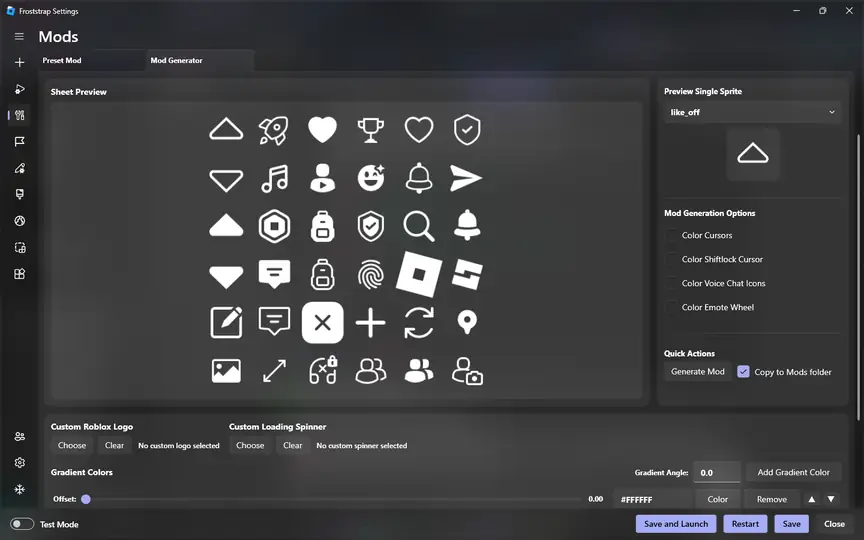
Quick answer: what Froststrap multi-instance does
The public Froststrap README lists multi-instance launching support under the Bootstrapper features. In practical terms, Froststrap can allow a second Roblox client to start while the first one remains open. The setting changes the local launch workflow; it does not merge two accounts, duplicate an experience or promise that two clients will fit comfortably in every computer's memory.
Before you enable Froststrap multi-instance, make one normal launch with the current release and default settings. Close Roblox Studio, note which account or test profile is already signed in, and save any important launcher choices. A clean baseline gives you a useful comparison: if the second client fails, you can turn the feature off and confirm that a single client still works. This page is a focused multi-instance guide, separate from first-time installation, Fast Flags and the general Froststrap features overview.
- Use the public Froststrap release and read its current settings labels.
- Test one client before starting a second client.
- Keep account credentials and session cookies out of screenshots or support posts.
- Treat a crash, freeze or login prompt as a signal to stop and return to the baseline.
What counts as a second Roblox instance?
An instance is one running Roblox client process with its own window, connection and current session. Two windows may represent two clients, but a launcher panel, a browser tab or a frozen process is not a healthy second instance. The useful output is two responsive clients that you can identify and close independently.
People use multiple Roblox instances for several legitimate workflows: testing a private place with a second account, monitoring a different account, comparing a setting, or keeping a separate session available while developing. Those workflows still follow Roblox account, experience and platform rules. Froststrap does not grant access to someone else's account and it cannot make a restricted experience allow multiple users.
| State | What you should see | What it means |
|---|---|---|
| Baseline | One client opens normally | The installation and account can launch without multi-instance. |
| Second launch | A separate responsive client window | The setting is doing its intended local job. |
| Unhealthy | A blank, frozen or immediately closed window | Stop, collect the message and disable the setting. |
| Rollback | One client works after the change is disabled | The multi-instance path, not the base install, needs review. |
Check Froststrap multi-instance requirements first
There is no reliable universal RAM number for Froststrap multi-instance. Roblox experiences differ, textures and browser tabs consume memory, and Windows may compress or page memory when the computer is busy. Start with the resources you actually have: close heavy applications, check Task Manager's Memory and CPU columns, and leave room for Windows and the Roblox experience itself.
Check the current Froststrap release notes and settings page before following an old video. The project can rename a control, change how a client is launched or remove behavior after a Roblox update. Keep Roblox, Studio and other bootstrappers closed while you change the option. If you use mods, Fast Flags, a custom channel or an account manager, record those choices so you can reproduce the baseline without changing several variables together.
- Confirm one normal Roblox launch on the same Windows account.
- Close Roblox Studio, competing bootstrappers and stale Roblox processes.
- Record the release tag, selected channel and optional flags or mods.
- Open Task Manager so memory and CPU changes are visible during the test.
- Keep a way to disable the setting without deleting your whole profile.
Enable Froststrap multi-instance one change at a time
The exact wording can move between Froststrap releases, so use the current launcher interface rather than copying a coordinate from a screenshot. The configuration guide describes Multi-instance as a Bootstrapper and launcher option. Open Froststrap, locate that control, read its helper text and change only this option for the first test.
Do not combine the first multi-instance test with a new FastFlag list, a channel switch, a large mod package or a process-priority change. If the second client behaves strangely, you need to know which change introduced the difference. Save the setting, close any stale clients and perform one controlled launch sequence.
1. Open the launcher settings
Start Froststrap with Roblox closed. Use the current Bootstrapper or launcher settings area and read the label for Multi-instance.
2. Enable only that option
Turn on the multi-instance control without importing flags, switching channels or adding a new mod. Save the previous value in a note.
3. Close stale processes
If a previous Roblox window is frozen or hidden, close it through Windows before testing. Do not repeatedly click Launch while a process is still starting.
4. Start the baseline client
Open the first client, wait for the home screen or experience to become responsive, and confirm the account you intended to use.
5. Start the second client
Use the same documented Froststrap launch path once more. Wait for a separate window and watch Task Manager instead of assuming a second click succeeded.
Run two Roblox clients and verify the result
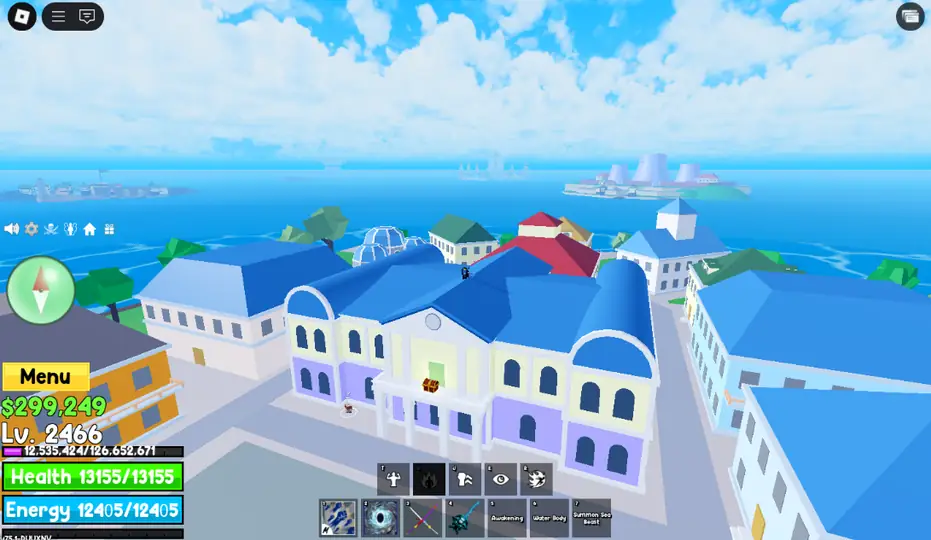
A successful Froststrap multi-instance test has two visible, responsive clients. Click or focus each window in turn, confirm that neither one is blank, and check that the first session remains connected while the second finishes loading. If you use separate accounts, sign in only through Roblox's normal account flow and never paste a password or cookie into an unofficial prompt.
Watch memory for several minutes instead of judging the launch at the first frame. A client can open successfully and then become unstable when an experience loads textures, voice features or a large place. If the computer starts paging heavily, the fans run continuously or both clients stutter, close the second client and restore a single-client setup. Stability is more useful than a maximum client count.
Identify each window
Use the taskbar and window focus to distinguish the first and second client. A duplicate title alone is not enough if one process is unresponsive.
Check the account context
If you need two accounts, use the normal Roblox sign-in controls and keep each account's credentials private.
Load a small test
Join a familiar, lightweight experience first. Avoid changing graphics, flags or mods while you are establishing the baseline.
Observe resources
Read Task Manager's memory, CPU and GPU columns for both clients. Record the values before and after the second launch.
Stop early when unstable
Close the second client if Windows becomes unresponsive, Roblox disconnects repeatedly or the first session is harmed.
Manage accounts, memory and regions responsibly
Froststrap can expose account-management and region-related controls, but those controls remain separate from multi-instance launching. Keep a short label for each window and avoid sharing an account session between people. Never install a helper that asks for a Roblox cookie, browser export or two-factor code just to open a second client.
Process priority can make a busy computer feel different, but a higher priority is not a guarantee of better FPS and can starve other Windows tasks. Test the default priority first. A region selector can influence where a server is found, yet it cannot guarantee low ping or make two sessions use identical routes. Change one setting, test, and keep a rollback note.
- Keep browser tabs, launchers and recording tools closed when measuring memory.
- Do not disable Windows security or add exclusions to make multi-instance start.
- Avoid large FastFlag imports during a multi-instance test; they are a separate variable.
- Use a familiar experience and the same network when comparing one and two clients.
- Close the extra client before editing settings or installing an update.
Troubleshoot Froststrap multi-instance not working
If the second client never appears, close all Roblox and Froststrap processes and retry once with the current release. A hidden mutex, a stale crash handler, a blocked executable or a changed Roblox client can make a repeated click look like a feature failure. Record the exact message instead of deleting broad AppData or Roblox folders.
If the second client opens and closes immediately, disable recent mods and Fast Flags, then test the normal single-client launch. If one client works with the setting off, the failure is likely in the multi-instance path or an interaction with an optional setting. If both paths fail, use the general troubleshooting guide and investigate the base Roblox, Windows or network layer.
If both windows open but the computer freezes, treat the resource limit as the result. Close the second client, wait for Windows to recover and lower the test scope. Do not keep launching clients to find a maximum. A reproducible report should include the Froststrap release, Windows build, client count, whether defaults work and the exact point where the failure occurs.
| Symptom | First check | Safer next step |
|---|---|---|
| Second window never appears | Stale Roblox/Froststrap processes | Close them, retry once and record the message. |
| Second client closes | Mods, Fast Flags and current release | Return to defaults and compare one client. |
| Both clients freeze | Task Manager memory and CPU | Close the extra client and lower the test scope. |
| Login prompt repeats | Account session and normal Roblox flow | Use Roblox's own sign-in path; never share cookies. |
| Single client also fails | Standard launcher and network | Use the general troubleshooting sequence. |
Limits, safety and rollback
Froststrap multi-instance is a local launcher feature, not a safety guarantee or a Roblox policy exception. Roblox can change how clients, accounts and experiences behave. Follow the rules for the accounts and experiences you use, and stop if a workflow requires bypassing a restriction, hiding activity or installing an unofficial executor.
To roll back, close every Roblox client, disable Multi-instance in Froststrap and launch one known-good client. Remove only a documented optional setting or mod that you added during the test. Keep the previous configuration note until the single-client baseline survives a restart. Reinstalling should be a later diagnostic step, not the first response to a failed second launch.
If the current interface no longer contains the control, do not use an old executable or a random patcher to restore it. Check the official repository and release notes, then report a reproducible difference. This keeps the guide honest as Froststrap and Roblox change.
- Use official project releases and current documentation.
- Keep Windows protection enabled and reject unrelated download helpers.
- Do not share passwords, cookies, tokens or private logs.
- Return to one client before updating, uninstalling or changing flags.
- Treat client count as a resource test, not a performance promise.
Froststrap multi-instance FAQ
Does Froststrap support multi-instance Roblox?
The public Froststrap README lists multi-instance launching support. Use the current launcher setting, test one client first and verify that your computer remains stable before opening a second client.
How many Roblox instances can Froststrap run?
The project does not promise one universal client limit. The practical limit depends on Windows, memory, the Roblox experience and other applications, so test conservatively and stop when the system becomes unstable.
Can I use two Roblox accounts with Froststrap multi-instance?
You can use the normal Roblox sign-in flow for separate accounts when the experience and platform rules allow it. Froststrap does not create accounts or provide permission to bypass account restrictions, and you should never share cookies or passwords.
Why does the second Froststrap client close immediately?
Close stale processes, disable recent mods and Fast Flags, confirm the current release and compare a single-client launch. Record the exact message before trying a broader reset.
Does multi-instance improve Roblox FPS?
No. Running more clients usually increases memory and CPU demand. Multi-instance solves a workflow need; it is not an FPS booster or a guarantee of lower ping.
Should I change process priority for multiple clients?
Test the default priority first. A higher priority can starve other Windows tasks and does not guarantee better performance. Change one option at a time and keep a rollback path.
How do I disable Froststrap multi-instance?
Close all Roblox clients, turn off the Multi-instance setting in the current Froststrap launcher interface, save it and confirm that one normal client launches before restoring other settings.
Is Froststrap multi-instance an exploit or executor?
No. It is described as a bootstrapper launch feature. Do not install a separate executor, script tool or helper that asks for credentials, cookies or security exclusions.
Sources checked for this guide
- Froststrap official GitHub READMELists Multi-instance launching support under Bootstrapper and identifies the approved project source.
- Froststrap settings guideDescribes Multi-instance as a Bootstrapper and launcher setting and recommends one change at a time.
- Froststrap feature overviewProvides a secondary description of multi-instance launching, account management and related features.
- Froststrap GitHub ReleasesUse the current release notes and assets when checking whether the interface or behavior changed.