
What Roblox error code 403 means
A 403 response is different from a missing page or a simple connection timeout. The service received the request but did not authorize it. In Roblox, the visible message may say error code 403, authentication failed, or that an error was encountered during authentication. The wording can appear while joining an experience, opening the client, completing an update or returning from an account action.
The message does not identify one universal cause. A Roblox outage, expired account session, damaged local cache, conflicting proxy or VPN, incorrect Windows time, blocked network request, or a launcher-specific configuration can all produce similar symptoms. That is why the safest fix is a short diagnostic sequence instead of deleting folders or changing many settings at once.
Do not assume Froststrap caused the failure merely because you launched through it. Froststrap still depends on Roblox account and service endpoints. The useful question is whether the same account and computer fail through both the standard Roblox launcher and a clean Froststrap configuration.
Quick diagnosis before changing anything
Record the exact message and when it appears. Note whether the website login works, whether the standard launcher opens, whether every experience fails, and whether another account works on the same computer. These observations separate a broad service or network problem from an account-specific or local-client problem.
Check the official Roblox status page before reinstalling. If authentication, website, game join or platform services show an incident, local repairs may only add noise. Wait for recovery, then retest without changing the installation. Also restart the browser and client so the test does not reuse a stale process.
If the status page is clear, sign out of Roblox in the browser and app, close all Roblox and bootstrapper processes, then sign in again through the normal Roblox flow. Never provide a session cookie, password or two-factor code to a supposed 403 repair utility.
| What you observe | Likely layer | Best next action |
|---|---|---|
| Roblox status reports an incident | Platform service | Wait, then retest before local changes |
| Website and standard launcher both reject the account | Session or account | Sign out, close processes and authenticate again |
| Standard launcher works but Froststrap fails | Bootstrapper configuration | Reset optional Froststrap settings and retest |
| Both launchers fail only on one PC | Local cache, time, security or network | Continue through the Windows checks below |
| All devices fail for one account | Account or service-side access | Use official Roblox support channels |
9 fixes for Roblox error code 403 on Windows
Work through these fixes in order. Test Roblox after every step and stop when it works. Changing several layers together makes it harder to know what solved the authentication failure and can erase useful evidence.
The steps deliberately begin with reversible checks. Reinstallation and network reset come later because they affect more local state and are rarely the right first reaction to a temporary Roblox authorization problem.
1. Check Roblox service status
Open the official status page and look for authentication, website, game join or platform incidents. If an incident is active, wait for Roblox to resolve it and avoid repeated reinstall attempts.
2. Refresh the Roblox account session
Sign out of the Roblox website and app, close RobloxPlayerBeta, browser and bootstrapper processes, then sign in again. Use the official login flow and do not copy cookies into third-party tools.
3. Restart Windows and the router
A full restart clears hung client processes and renews common network state. Restart the router only if other household users can tolerate the interruption, then test without a VPN or proxy.
4. Verify date, time and time zone
Enable automatic time and time-zone settings in Windows, synchronize the clock, and retry. Incorrect time can interfere with secure authentication and certificate validation.
5. Compare the standard Roblox launcher
Launch the same experience without Froststrap. If standard Roblox works, return to Froststrap, disable imported flags, custom channels, mods and optional launch changes, then test from defaults.
6. Clear only Roblox local cache
Close every Roblox process before removing temporary Roblox cache. Preserve screenshots of important Froststrap settings and avoid deleting broad user-profile folders. Roblox will recreate required temporary files on the next launch.
7. Review firewall, antivirus, VPN and proxy changes
Temporarily disconnect a VPN or proxy and check recent security notifications. Do not disable Windows security globally. If a legitimate Roblox or Froststrap executable was blocked, review the exact path and source before allowing it.
8. Reinstall Roblox from the official source
Uninstall the Roblox client, restart Windows and install it again through the official Roblox website or Microsoft Store path you normally use. Test the standard launcher before reinstalling or re-enabling optional bootstrapper settings.
9. Reset network settings only as a last local step
Use Windows network troubleshooting or network reset only after simpler checks fail. A reset can remove saved adapters, VPN configuration and Wi-Fi details, so record what you need before proceeding.
Froststrap-specific checks when standard Roblox works
When standard Roblox joins successfully but Froststrap returns error 403, keep the account and network constant and simplify only the bootstrapper layer. Confirm you are using the current stable Froststrap release from the public Froststrap GitHub guide, then launch with default settings before restoring customizations.
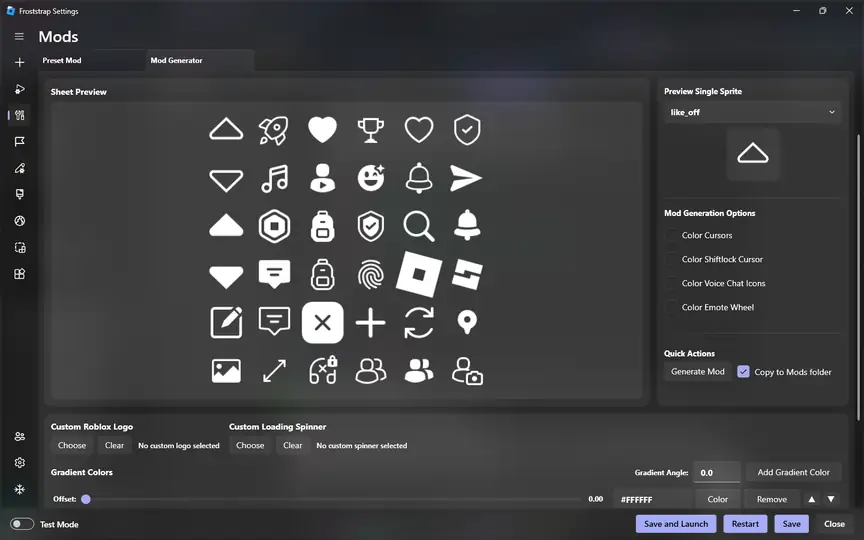
Disable custom deployment channels, imported Fast Flags, mods, region selection and account-management options for the test. Roblox can retire flags and channels, while an old imported profile may continue requesting behavior that no longer matches the current client. Read the Roblox Fast Flags allowlist guide before restoring a copied preset.
If a clean current release still fails while standard Roblox works, collect the Froststrap version, Windows version, exact message and smallest reproducible steps. Search the public repository Issues before opening a report. Remove account names, cookies, authorization headers and private logs from screenshots or attachments.
What not to do when fixing authentication failed
Avoid videos or download pages that promise a one-click Roblox 403 fixer. An executable cannot safely prove that an account or platform authorization problem is solved, and an unknown tool may request the same credentials or local access you are trying to protect.
Do not paste Roblox security cookies, browser storage, two-factor codes or account tokens into support posts. Do not turn off antivirus, firewall or SmartScreen for the entire computer. A narrow, source-verified exception is different from disabling protection because a tutorial says every detection is false.
Do not repeatedly change DNS, proxy, firewall, clock, launcher and account settings in one attempt. Preserve a known baseline, make one reversible change, and test. This produces a dependable fix and useful evidence if official support or project maintainers need to investigate.
When to contact Roblox or Froststrap support
Contact Roblox Support when the same account fails across devices or both the website and standard launcher reject authentication after the service status is normal. Include the approximate time, platform, exact message and the troubleshooting already completed. Do not include passwords, session cookies or full private logs.
Use Froststrap's public issue tracker when the current stable Froststrap release fails from defaults but the standard launcher works on the same Windows account and network. A good report states the release, whether imported settings were disabled, whether the issue survives a clean configuration, and the smallest steps needed to reproduce it.
If error 403 follows an account moderation or suspension event, local cache and network changes may not alter the result. Use Roblox's official account and support process rather than trying to bypass an access decision through another launcher.
Roblox error 403 repair checklist
A successful repair should be repeatable: Roblox status is normal, Windows time is correct, the account authenticates through the official flow, and the same experience opens through the standard launcher. Only then should you restore Froststrap options one at a time.
Keep the final working configuration simple. Remove obsolete flags, unsupported channels and unknown proxy tools instead of carrying them into the next update. If the error returns, the comparison notes you made will show whether the change came from Roblox, Windows, the network or Froststrap.
- Official Roblox status checked
- Account session refreshed without sharing credentials
- Windows date, time and time zone verified
- Standard Roblox launcher tested
- Froststrap tested with optional settings disabled
- Only targeted cache or network repairs used
- Exact error and successful step recorded
Roblox error code 403 FAQ
What does error code 403 mean on Roblox?
It means a request reached a service but access was refused. In Roblox it is often associated with authentication, account session, service, network or local-client conditions rather than one single permanent cause.
Is Roblox error 403 a ban?
Not necessarily. A 403 can occur during outages, expired sessions, local cache or network problems. If the message follows moderation and the account fails on every device, use Roblox's official account-support process.
Can Froststrap cause Roblox authentication failed?
A Froststrap setting can contribute when standard Roblox works but Froststrap fails. Test the current stable release with imported flags, custom channels, mods and optional settings disabled before concluding that the bootstrapper is responsible.
Should I delete Roblox folders to fix error 403?
Do not begin by deleting broad folders. Check status, refresh the session, restart, verify time and compare launchers first. If evidence points to damaged local data, clear only the documented Roblox cache after closing all processes.
Does changing DNS always fix Roblox error 403?
No. DNS changes do not repair an account decision, expired session or platform outage. Treat network changes as a later diagnostic step and record existing settings before resetting them.
Why does standard Roblox work but Froststrap shows 403?
That pattern points to a launcher-specific setting or stale imported configuration. Return Froststrap to defaults, disable optional channels, flags and mods, confirm the current release, then restore changes one at a time.
Official and technical references
- Roblox StatusFirst-party service incident and availability information.
- Roblox Support: General Desktop IssuesOfficial desktop troubleshooting and reinstall guidance.
- MDN: HTTP 403 ForbiddenTechnical definition of the HTTP 403 response.
- Froststrap public repository issuesProject-specific bug reports and reproducible troubleshooting context.